Nick Test Page
Accessing Leap
To access Leap you can copy and paste the below URL into a web browser on your computer (you do not need to be in the remote desktop environment to access Leap like you do the Polaris Toolbar):
URL: https://fllsleap.flls.org/LeapWebApp
The Leap interface should open in the default browser and you should see the following page:
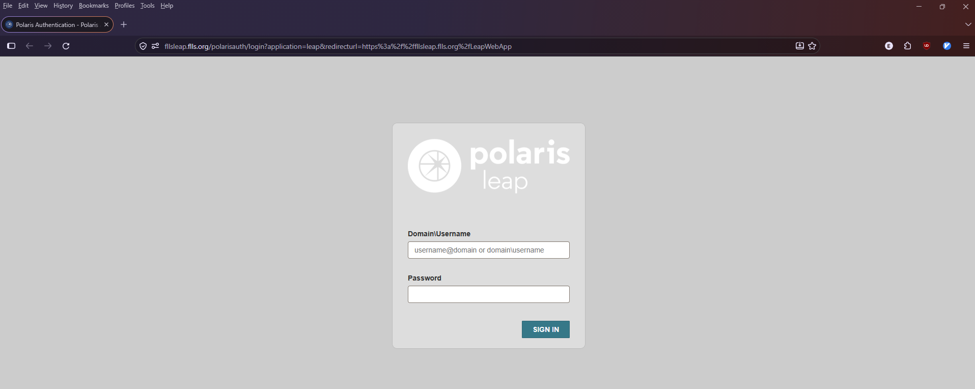
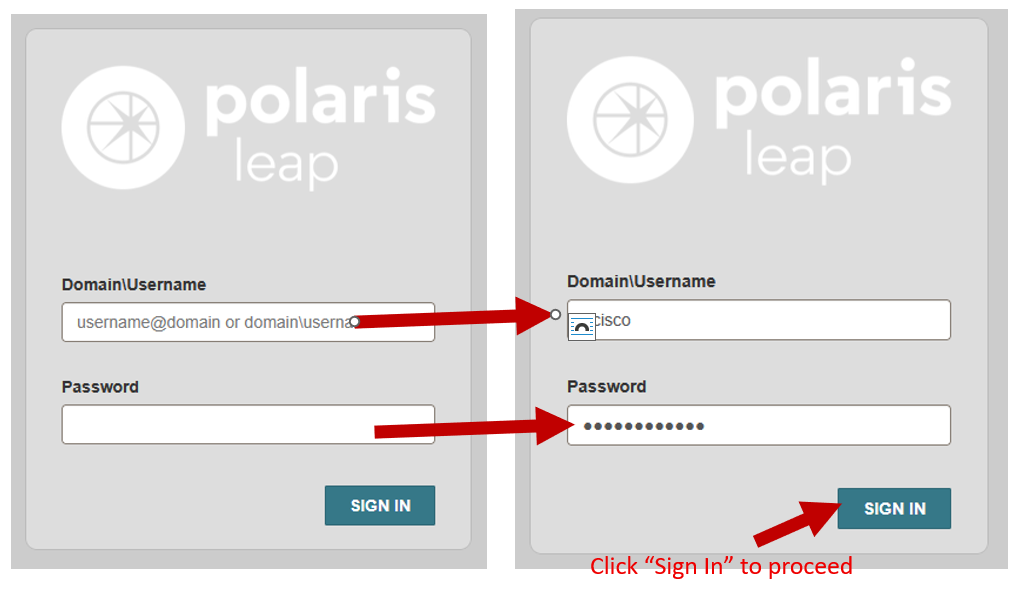
In the center login area, use the same Username and Password you would use to login to Polaris Toolbar and click “Sign In”
The Leap interface is simply a different way of accessing the same underlying database the traditional Polaris Toolbar also uses, hence why you can use the same login information for either
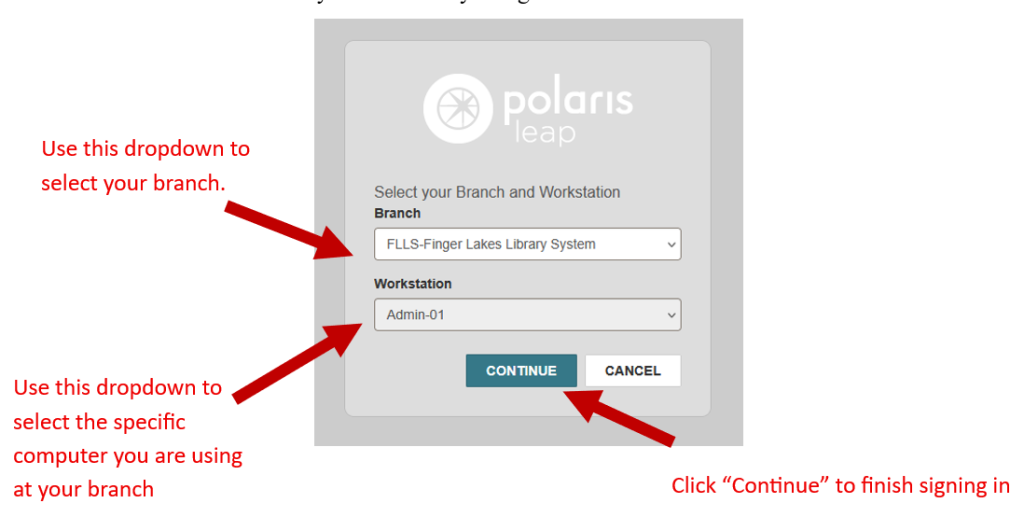
Similarly to the toolbar, you’ll select your branch from the dropdown. You’ll also select which workstation you’re currently using then click “Continue”:
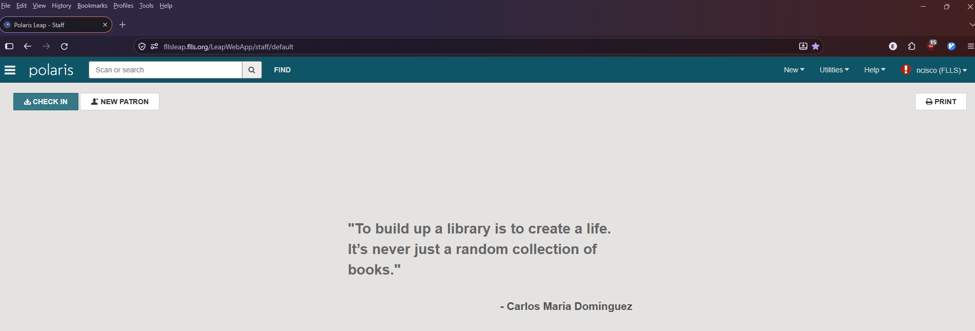
This is what the home page of Leap looks like. To perform basic circulation functions all you need is the search bar and the “Check In” button in the top left corner.